Install the DPD Browser Extension
The DPD browser extension adds a dictionary sidebar to your browser. Double-click any Pāḷi word on a webpage and the definition appears instantly — no copying, no tab-switching.
It works in both Google Chrome and Mozilla Firefox.
Install
Chrome
(1) Open the DPD page on the Chrome Web Store.
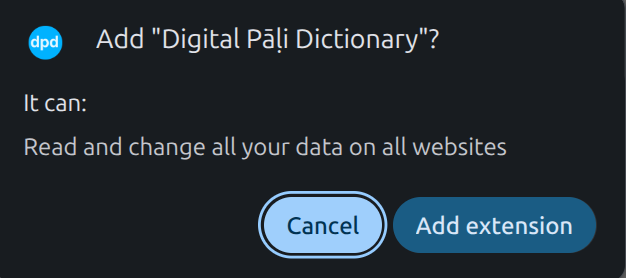
(2) Click Add to Chrome.

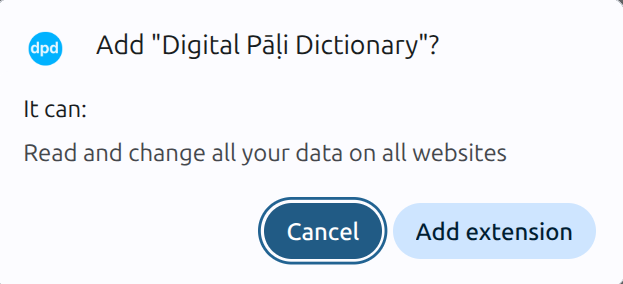
(3) Click Add extension in the popup.
Firefox
(1) Open the DPD page on Firefox Add-ons.
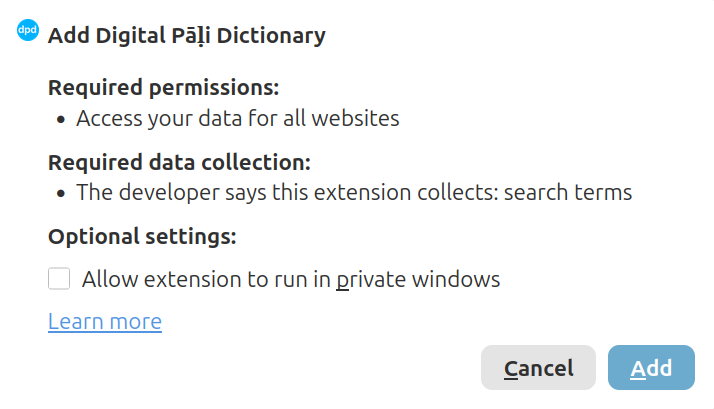
(2) Click Add to Firefox.

(3) Click Add in the popup.
Pin the Extension
Pinning adds the DPD icon to the toolbar so you can toggle the extension with one click.
Chrome
(1) Click the puzzle piece icon in the top-right corner of the browser.
(2) Find Digital Pāḷi Dictionary in the list.
(3) Click the pin icon next to it.


Firefox
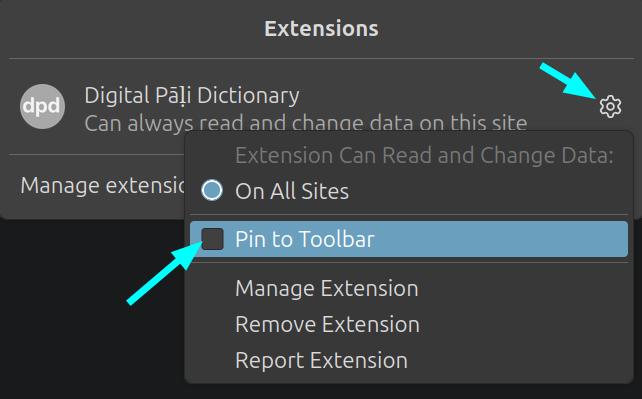
(1) Click the puzzle piece icon in the Firefox toolbar.
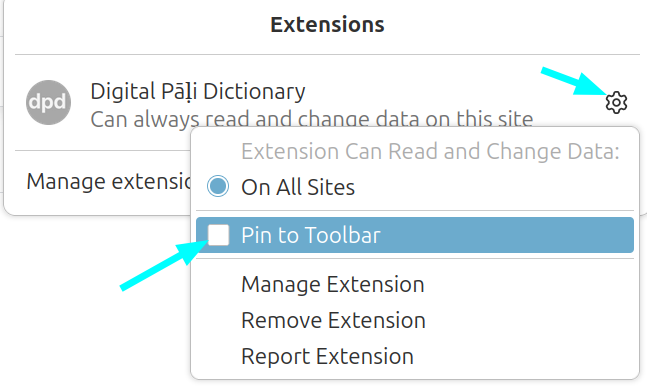
(2) Click the gear icon next to Digital Pāḷi Dictionary.
(3) Select Pin to Toolbar.
Turn On and Off
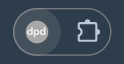
Click the DPD icon in the toolbar to turn the extension on or off for the current website.
- When the icon is blue, the extension is on.


- When the icon is grey, the extension is off.

The extension remembers your choice for each website separately.
Sites that Turn On Automatically
On the following websites, the extension turns on automatically without clicking the icon.
- SuttaCentral
- Digital Pāli Reader
- The Buddha's Words
- tipitaka.org
- tipitaka.lk
- tipitaka.paauksociety.org
You can still turn it off on any of these sites by clicking the DPD icon.
Search for a Word
There are three ways to look up a word.
Double-click
Double-click any Pāḷi word on the webpage.


Highlight and drag
Click and drag to select a word or short phrase, then release. This is useful for searching compound words or two-word phrases.


Type in the search bar
Type directly in the search bar at the top of the panel and press Enter or click the search button.


Velthuis to Unicode
If you don't have a Pāḷi keyboard installed, you can type using simple letter combinations. They are converted to Unicode automatically.
| Velthuis | > | Unicode |
|---|---|---|
| aa | > | ā |
| ii | > | ī |
| uu | > | ū |
| "n | > | ṅ |
| ~n | > | ñ |
| .t | > | ṭ |
| .d | > | ḍ |
| .n | > | ṇ |
| .m | > | ṃ |
| .l | > | ḷ |
| .h | > | ḥ |
For example, typing ni.t.thaa becomes niṭṭhā.
Navigate Search History
Every word you look up is saved to the session history. Use the Back and Forward buttons in the panel header to move through your previous lookups without re-searching.
Resize the Panel
Drag the left edge of the panel to make it wider or narrower.
Theme
The extension automatically matches the colour scheme of the website you are on. To set it manually, click the palette icon in the panel header.
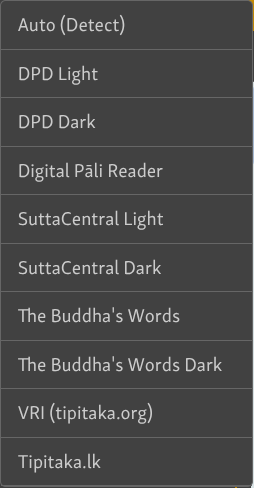
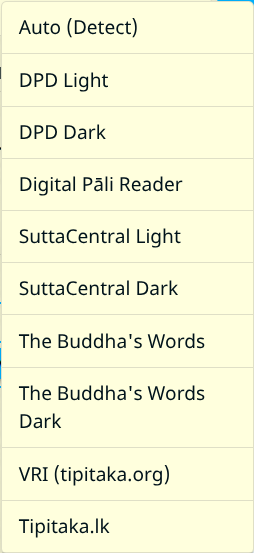
The theme is saved per website.
Settings
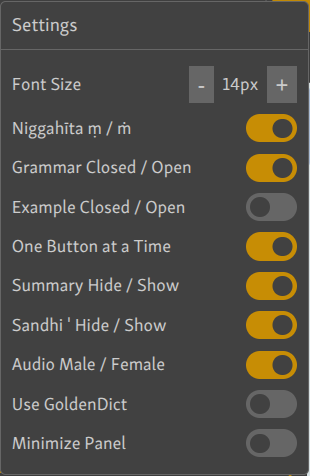
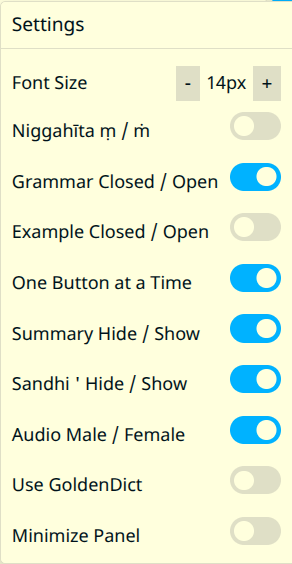
Click the gear icon in the panel header to open the settings.
Font Size
Click – or + to decrease or increase the text size in the panel.
Niggahīta ṃ / ṁ
Select your preferred representation of the 41st letter of the Pāḷi alphabet — ṃ (dot below) or ṁ (dot above).
Grammar Closed / Open
When on, the grammar section opens by default for every new word looked up.
Example Closed / Open
When on, the example sentence section opens by default for every new word looked up.
One Button at a Time
When on, opening one section automatically closes any other open section. When off, multiple sections can stay open at the same time.
Summary Hide / Show
The summary is a compact overview of results shown at the top of the panel. Toggle to hide or show it.
Sandhi ' Hide / Show
DPD marks sandhi joins with an apostrophe ', for example vat'amhi. Toggle to show or hide the apostrophe markers.
Audio Male / Female
Select a male or female voice for audio pronunciations.
Use GoldenDict
When turned on, double-clicking a word opens it directly in GoldenDict instead of the sidebar.
This is a very convenient feature. Normally, to look up a word in GoldenDict you have to copy the word and press Ctrl+C+C — with this setting on, a single double-click does it for you from any webpage.
The extension also falls back to GoldenDict automatically if you are offline.
Minimize Panel
Collapses the panel to a thin strip on the right edge of the screen. Click the arrow on the strip to expand it again.


How to Use
Click the ⓘ info button in the panel header at any time to see a quick guide on how to use the extension.


Feedback
Having problems with something? Want to add a feature? Click the link at the bottom of the page to open a feedback form.

