Database Query
Database Query
Every DPD headword is a row in a database, and every part of it — the lemma, the part of speech, the meaning, the construction — is a column in that row. The Database Query tab searches those columns directly, so you can find words by what their fields contain, not only by their spelling.
For example: every masculine noun whose lemma starts with dhamma, or every word whose construction contains the root √dhar.
Opening the Tab
Click on the Database Query tab in the top left corner of the web page to open it. It is the fourth tab, after DPD, CST Bold Definitions and Tipiṭaka Translations.


You can also open it directly at www.dpdict.net/?tab=dq.
Filters
Each filter has three parts: the field to search, the search type, and the value to look for.


The field is the name of a database column, such as lemma_1, pos or meaning_1. Start typing and choose one from the list. The search types are:
- contains — the value appears anywhere in the field.
- starts with — the field begins with the value.
- ends with — the field ends with the value.
- regex — the value is a regular expression, for power searches.
Searches are case-sensitive: in lemma_1, dhamma finds dhamma 1.01, while Dhamma finds nothing.
Click + filter to add a row, and the × at the end of a row to remove it. You can use up to ten filters.
and / or
The selector at the start of each row joins it to the row above. and means both must match. or starts a new group, which is set apart by a dashed line, so
a and borc and d
means (a and b) or (c and d).
In the picture above, the search finds every masculine noun whose lemma starts with dhamma, or any word whose lemma starts with buddh.
Results
Press search to run the query. The results appear below as a table, one row per headword, with the columns you chose to show.
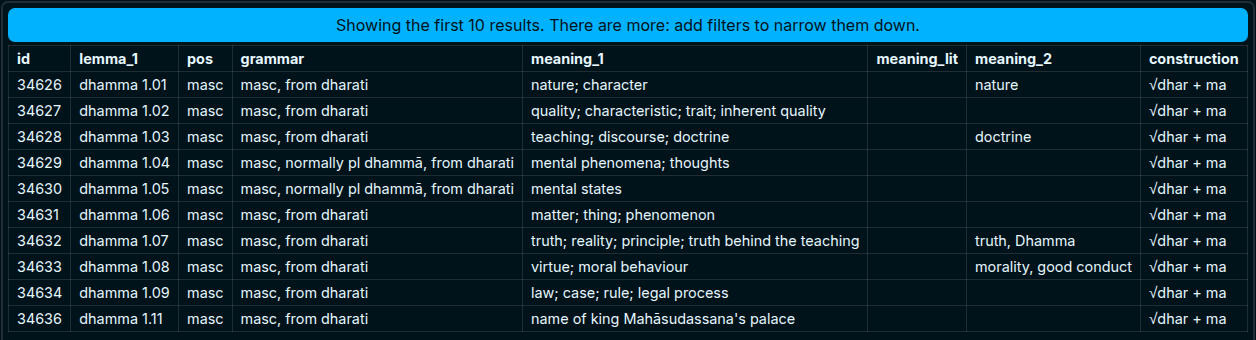
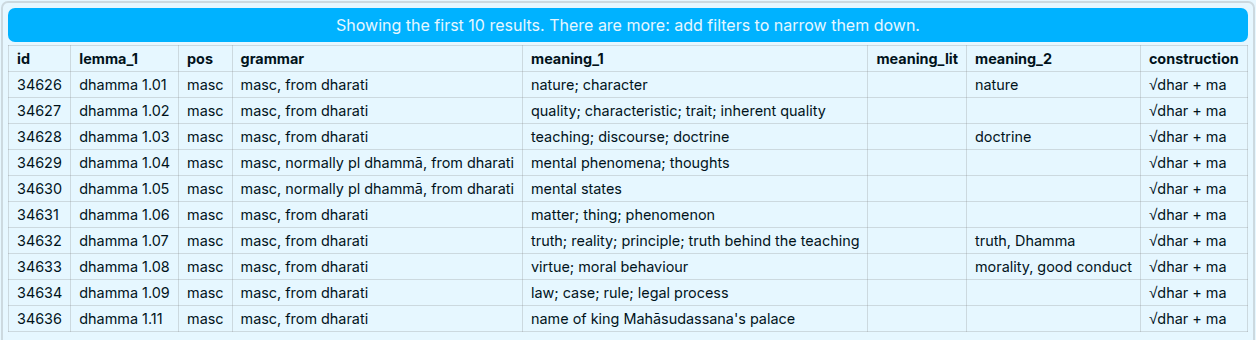
The limit is the most rows a search will return, up to 100. When there are more results than the limit, the page says so above the table, and the fix is to add filters to narrow the search.
Choosing the Fields to Show
Click show to choose which columns appear in the results.
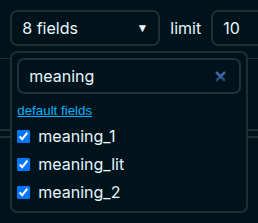
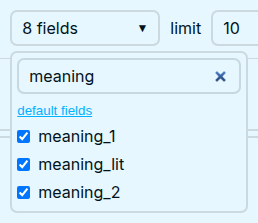
Type in the box to find a field, tick the ones you want, and click default fields to go back to the usual eight. At least one field is always shown.
Fetch all fields
With fetch all fields off, each search fetches only the fields you are showing, which is faster. If you then tick another field, the page asks you to search again before it can show that column.
With it on, every field is fetched, so ticking or unticking a field updates the table straight away without another search. The trade-off is that each search takes a little longer.
Presets
A preset saves the filters, the shown fields, the limit and the fetch all fields setting together, so you can come back to a query later.


Type a name and press save. Choose a preset from the list to load it, and delete to remove the one you are looking at.
Presets are kept in your own browser only, not on the server. They do not follow you to another browser or computer, and clearing your browser's site data removes them.
Export
The results can be saved to your computer with export TSV for a spreadsheet, or export JSON for a script.


Both buttons save the columns you are showing, in the order they appear, and stay disabled until a search has returned some results.
Issues
If you have any problems or suggestions for improvement, please add it to the DPD issues on GitHub.